
Activation rehearsal

Choose a visitor interaction and calculate how many stations you need at peak times. Save a rehearsal sheet for the team. Free to use in your browser.

Participant arrivals

Count people who will start a session. If 300 pass the stand and 10% take part, enter 30.

Browse interactions
Scenario
From capture to portrait delivery
Comparison

Replace the sample timings with measurements. A blank station count is treated as one for comparison. When a station performs several actions in sequence, enter their combined time for one stage.

Event details and dates
See capacity estimate

Visitor capacity

AI portrait with QR delivery

Up to 22 visitors in 15 min

48 expected visitors. Estimated shortfall of 26.

  • From capture to portrait delivery — 22 · 40 sec · group 1 · 1 station

The estimate counts visitors who finish the last stage. At the start, visitors queue at the first stage. Independent stations work without breaks and start sessions when a full group has formed.

Use this event and scenario in the production schedule

Interaction library

Equipment available

AI portrait with QR delivery

The visitor takes a selfie, waits for the portrait and opens it on a phone using the QR code.

Area on a stand

How to run a session
Sample setup
  • From capture to portrait delivery — 40 sec · visitors 1 · stations 1
Equipment
Display, Camera, Internet access
Operator
Direct visitors to free cameras and help them open the QR link.
Connections and checks
Test the portrait generation connection and download the finished file on a phone.
Visitor outcome
A vertical portrait and a download QR code.
Fallback
Show a prepared example and free the station for the next visitor.

Omelchak built the interface, capture, generation and delivery for Sber’s festival zone.

Sber

InvestKopilka arcade

The player uses a joystick to collect assets in a one-minute round.

One kiosk

How to run a session
Sample setup
  • Round and player changeover — 65 sec · visitors 1 · stations 1
Equipment
Display, Joystick
Operator
Explain the controls and hand the joystick to the next player.
Connections and checks
The leaderboard is stored locally.
Visitor outcome
A score and a place in the daily leaderboard.
Fallback
Play a recording of a round and show how the score is calculated.

Omelchak developed the interface, game logic and kiosk build for Sber’s zone.

Sber

Choose an area on a 3D model

The visitor selects a marker on the port overview and inspects a terminal from another angle.

One kiosk

How to run a session
Sample setup
  • Choose and explore an area — 45 sec · visitors 1 · stations 1
Equipment
Touchscreen
Operator
Help locate the right area and return to the overview.
Connections and checks
Prepare a local build of the scene.
Visitor outcome
A view of the selected part of the port.
Fallback
Open saved views of the terminals on the display.

Omelchak built the 3D models, interface and navigation for the port application.

Try choosing an area

Choose a part of the port.

Port of Novorossiysk

Container crane demonstration

A group watches the crane pick up a container and move it.

Area on a stand

How to run a session
Sample setup
  • Process demonstration — 90 sec · visitors 5 · stations 1
Equipment
Display
Operator
Start the demo, explain the steps and return the scene to the start.
Connections and checks
Prepare a local demo and keep a separate recording.
Visitor outcome
A 3D sequence showing the equipment in operation.
Fallback
Play a recording of the container movement.

Omelchak modelled the equipment, programmed the crane and built the port application.

Port of Novorossiysk

Self-guided museum exploration

The visitor opens a newspaper spread, finds material or moves on to a career question.

One kiosk

How to run a session
Sample setup
  • Browse and read the material — 120 sec · visitors 1 · stations 1
Equipment
Touchscreen
Operator
Show visitors where to start and update materials using the museum’s instructions.
Connections and checks
The applications run locally.
Visitor outcome
A selected article, exhibit explanation or quiz result.
Fallback
Open a prepared spread on a shared display and guide the visit manually.

Omelchak developed the museum applications and screen content for Pokolenie School.

Try one question

Where can a visitor open explanations of the machine’s parts?

Pokolenie School

Programmed lighting sequence

A group follows illuminated branches from a study track to related fields of science.

Dedicated space

How to run a session
Sample setup
  • Lighting sequence — 30 sec · visitors 6 · stations 1
Equipment
Controlled lighting
Operator
Switch scenes and check that the lighting highlights the intended panels.
Connections and checks
Test the link to the lighting controller.
Visitor outcome
Visible links between themed panels within one scene.
Fallback
Switch to a prepared static lighting scene.

Concept Designers created the foyer concept and design. Omelchak assembled, programmed and calibrated the lighting.

Pokolenie School

Touch-table quiz

The visitor answers a short series of questions and sees their result on the screen.

One kiosk

How to run a session
Sample setup
  • Questions, results and changeover — 60 sec · visitors 1 · stations 1
Equipment
Touchscreen
Operator
Help visitors start and check that the first question returns after each round.
Connections and checks
Test the table’s connection to the application server at the venue.
Visitor outcome
The round score and the correct answers.
Fallback
Have a host run the same questions with printed answer cards.

The studio built a quiz and a quest for the Rosmolodyozh stand at VDNKh.

Rosmolodyozh

AR scene with a photo print

The visitor sees themselves in a scene on the screen. An operator takes the photo and a separate station hands out the print.

Area on a stand

How to run a session
Sample setup
  • Choose an AR scene and take the photo — 60 sec · visitors 1 · stations 1
  • Print and hand over at a separate station — 120 sec · visitors 1 · stations 1
Equipment
Display, Camera, Operator tablet, Photo printer
Operator
Check the framing, send the image to print and direct the visitor to collection.
Connections and checks
Test the tablet connection and follow a test file all the way to the printer.
Visitor outcome
A printed photo of the visitor in the selected scene.
Fallback
Keep the live scene running. Once the printer is available, hand over queued prints in order.

The studio built a six-scene AR display with tablet control and photo printing for Abinsk Museum.

Abinsk Museum

Physical model with addressable lighting

Visitors select a building on a touchscreen, find it on the physical model and open the floor plans.

Area on a stand

How to run a session
Sample setup
  • Select a building, show details and return to overview — 90 sec · visitors 2 · stations 1
Equipment
Touchscreen, Physical model, Controlled lighting
Operator
Verify that the illuminated building matches the selection on screen.
Connections and checks
Test local commands between the panel and the lighting controller.
Visitor outcome
An illuminated building with a map and floor plans on the panel.
Fallback
Switch on the model’s overview lighting and open the requested plan manually.

The studio built the physical model and touchscreen lighting controls for Ekaterininsky Park.

Ekaterininsky Park

Physical objects trigger video

The visitor places an object on a platform to play the clip associated with it.

Area on a stand

How to run a session
Sample setup
  • Select an object, play the clip and reset — 65 sec · visitors 1 · stations 1
Equipment
Display, Sensors and controllers
Operator
Show visitors where to place the object and return it after each session.
Connections and checks
For a local build, check the controller signal both when placing and when removing an object.
Visitor outcome
A clip about the chosen subject.
Fallback
Play the chosen clip from the operator menu.

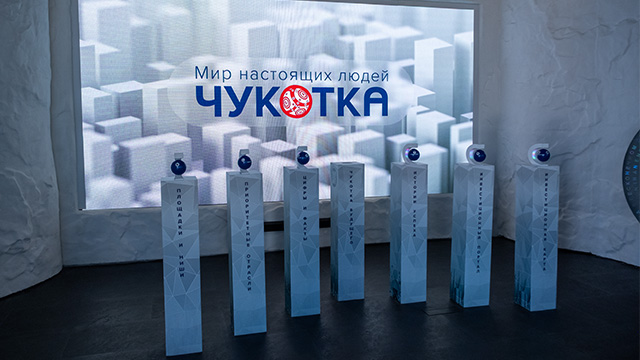
At the EEF Chukotka pavilion, visitors chose videos by placing one of six spheres on a central platform.

Chukotka at the EEF

Sliding display over a map

The visitor slides a display along a map. An object card opens at the corresponding marker.

Area on a stand

How to run a session
Sample setup
  • Find a marker, explore and reset the display — 75 sec · visitors 1 · stations 1
Equipment
Touchscreen, Sensors and controllers
Operator
Check alignment at every marker and show visitors how to return to the overview.
Connections and checks
Test sensor signals at every position and keep the exhibit data available locally.
Visitor outcome
An object card with specifications and animation.
Fallback
Show the same cards on a fixed display with manual selection.

The display built for Vympel revealed satellite data as visitors moved it along the map.

Vympel

Audio story in a telephone handset

The visitor lifts the handset and hears a letter while its text appears on the portrait display.

One kiosk

How to run a session
Sample setup
  • Listen and return the handset — 90 sec · visitors 1 · stations 1
Equipment
Display, Audio equipment, Sensors and controllers
Operator
Check that the sound and text match and that hanging up returns the exhibit to standby.
Connections and checks
Keep sound and video in the local build and test the handset switch.
Visitor outcome
A narrated story with on-screen text.
Fallback
Play the recording and open the letter text manually.

The studio linked a telephone, narrated letters and portrait displays at Dinskoy Museum.

Dinskoy Museum

Voice-controlled lighting

The visitor says a short command and the installation responds with a lighting pattern.

Area on a stand

How to run a session
Sample setup
  • Command, lighting response and reset — 35 sec · visitors 1 · stations 1
Equipment
Microphone, Controlled lighting
Operator
Check whether commands are recognised over hall noise and how the sequence returns to standby.
Connections and checks
Test the link between command recognition and the lighting controller at the venue.
Visitor outcome
A lighting scene triggered by the visitor.
Fallback
Launch the same scenes from operator buttons.

The studio created the animation and voice controls for the SberDevices LED installation at WebSummit.

3D apartment finder with a saved selection

Visitors set criteria with a host, explore matching apartments and leave with a link.

One kiosk

How to run a session
Sample setup
  • Shortlist options and share the link — 180 sec · visitors 2 · stations 1
Equipment
Display, Internet access, Visitors’ phones
Operator
Guide the selection and check that the link opens the chosen unit on another device.
Connections and checks
Test the web presentation at the stand and open the link on a visitor’s connection.
Visitor outcome
A link to revisit the selected apartment.
Fallback
Shortlist options in a local catalogue and note the building and apartment number.

The Kubinka presentation combines 3D views, apartment filters and a link back to the selection.

Team challenge on a multitouch table

Each visitor handles one part of a shared diagram. The team assembles it and checks the result.

Area on a stand

How to run a session
Sample setup
  • Briefing, assembly and team changeover — 150 sec · visitors 4 · stations 1
Equipment
Touchscreen
Operator
Assign roles, test simultaneous touches and reset the table between teams.
Connections and checks
The scenario can run locally on one table.
Visitor outcome
A shared diagram with feedback on mistakes.
Fallback
Use physical cards to build the same diagram with a host.
Sample scenario

Live voting on a shared display

A group scans a shared QR code, votes on their phones and sees the result on the display.

Area on a stand

How to run a session
Sample setup
  • Join, vote and reveal the result — 120 sec · visitors 12 · stations 1
Equipment
Display, Visitors’ phones, Internet access
Operator
Open the round, allow time to join, close voting and reset for the next group.
Connections and checks
Test the QR code and access on different phones in the hall.
Visitor outcome
A group result without participant registration.
Fallback
Collect votes on cards and display the tally manually.
Sample scenario

Gesture-responsive display

Two visitors stand on marked spots and move to change elements in a shared scene.

Dedicated space

How to run a session
Sample setup
  • Enter the zone, play and change pairs — 45 sec · visitors 2 · stations 1
Equipment
Display, Motion tracking
Operator
Check the tracking boundaries and keep the queue outside them.
Connections and checks
Test tracking and rendering at the venue under show lighting.
Visitor outcome
The display responds to the movement of both visitors.
Fallback
Offer the same scene with an accessible button control.
Sample scenario

Seated VR session

The visitor puts on a headset and follows a short route with one task.

Area on a stand

How to run a session
Sample setup
  • Setup, VR session and headset cleaning — 180 sec · visitors 1 · stations 1
Equipment
VR headset
Operator
Fit the headset, explain how to exit and clean its contact surfaces before changeover.
Connections and checks
Check that the local experience starts after restarting the headset.
Visitor outcome
A completed route and the task result.
Fallback
Show the same route on a standard display with guidance from the operator.
Sample scenario